


What dies first on a laptop? It is mostly the keyboard or the battery. For users that engage in a lot of typing it is definitely the keyboard. Thousands of keystrokes a day. Spills. Crumbs. Dust. Years of pounding on the same keys.
Eventually, something gives. A key stops working. The TrackPoint develops a wobble. The backlight flickers or dies.
The solution is not a new laptop. The solution is a fresh keyboard.
What you are getting.
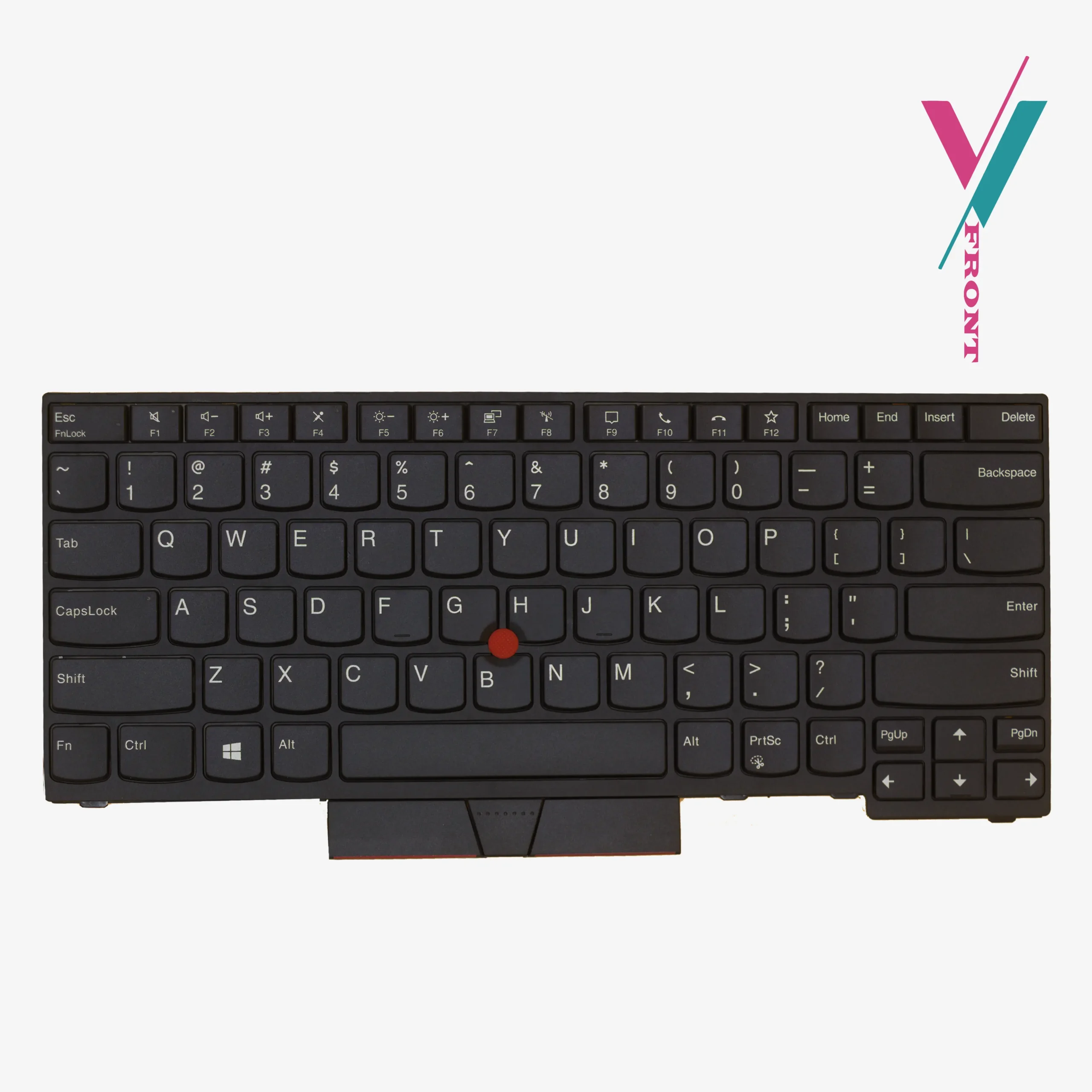
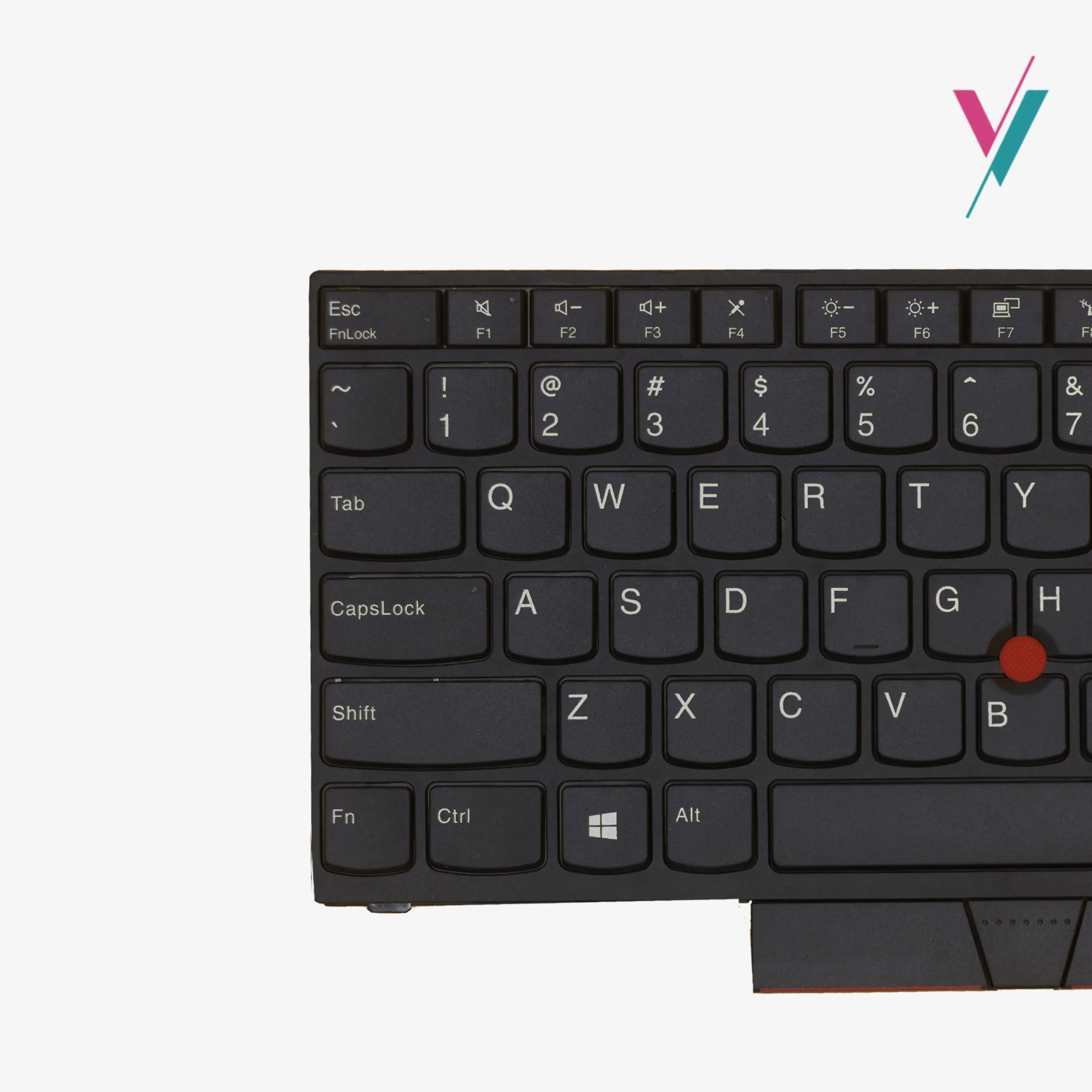
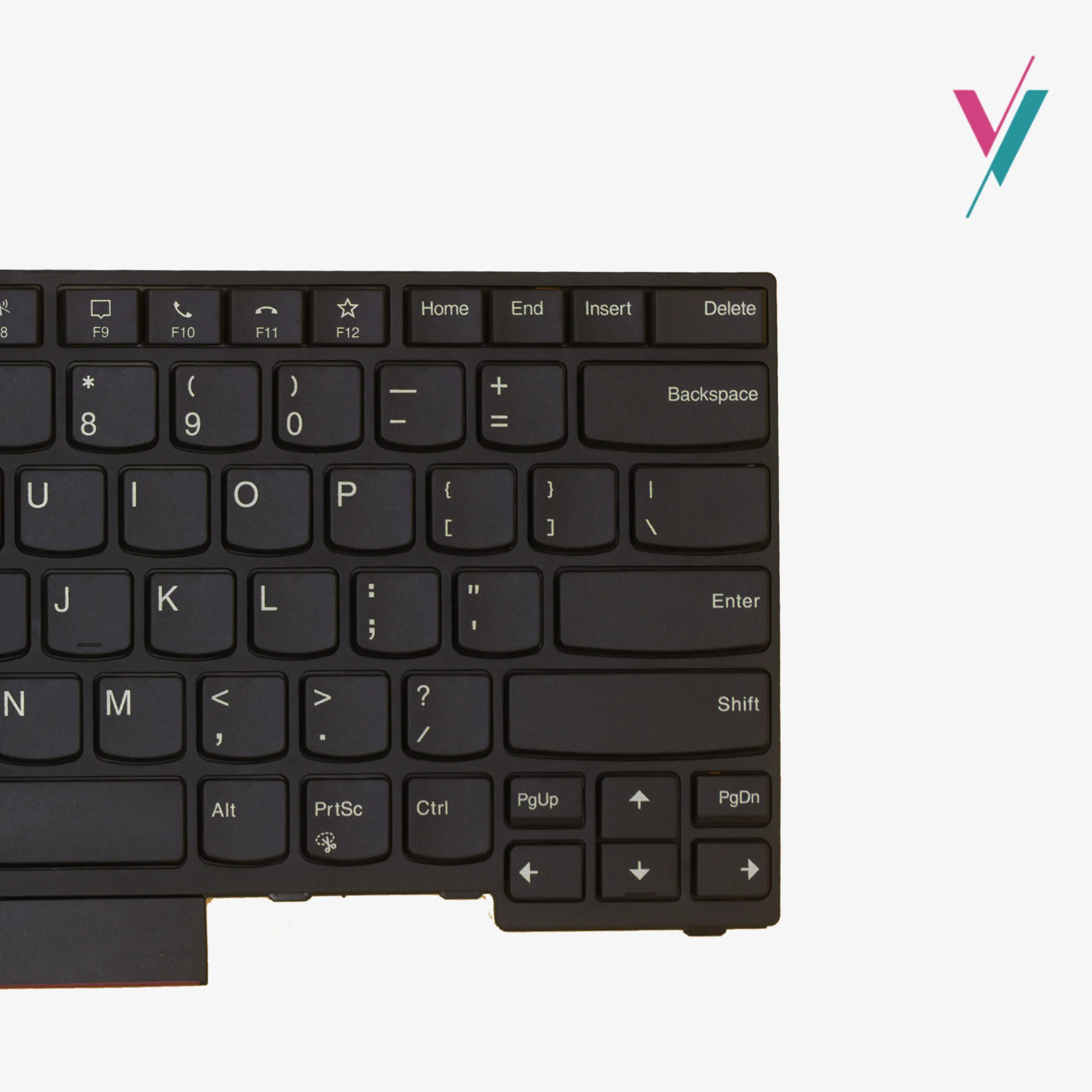
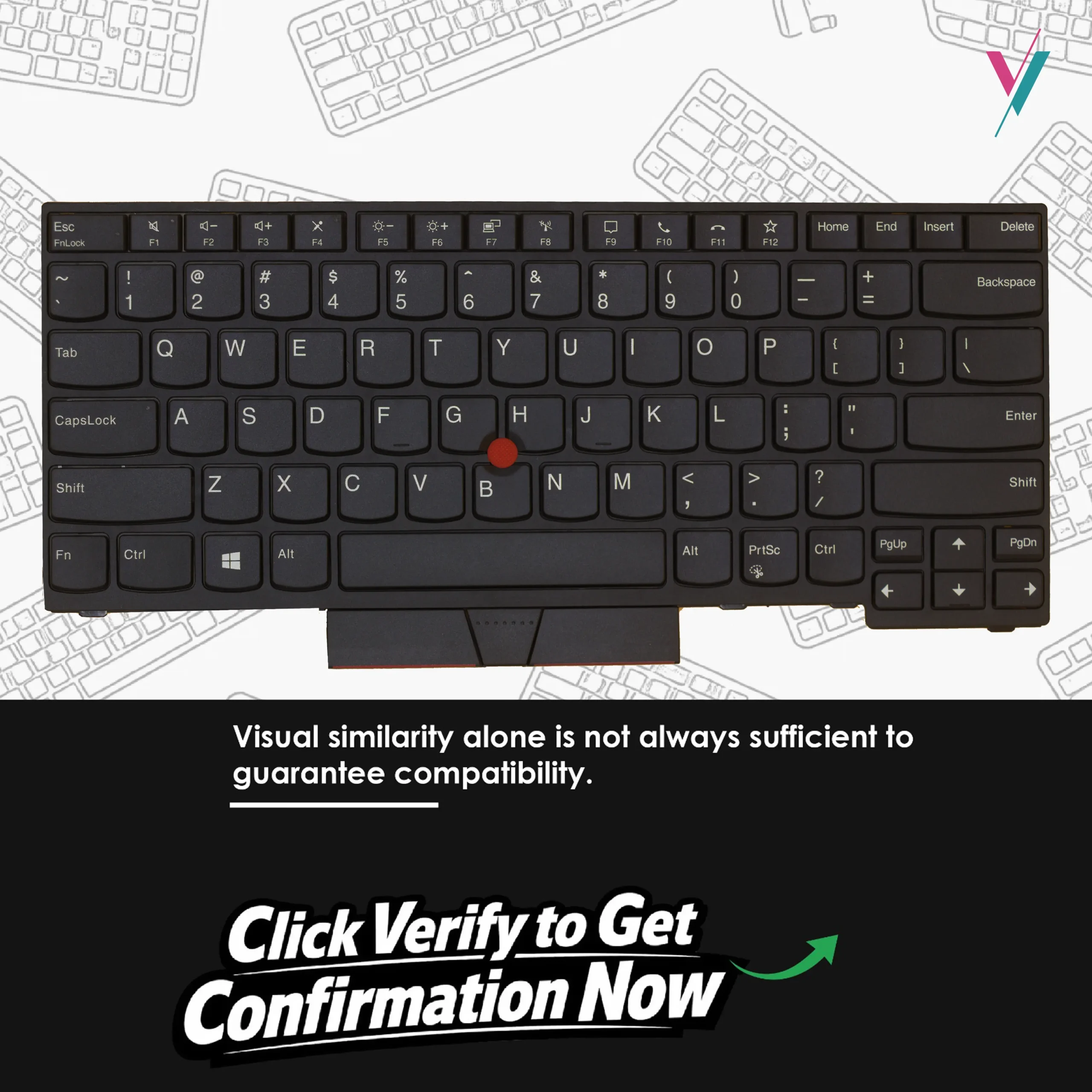
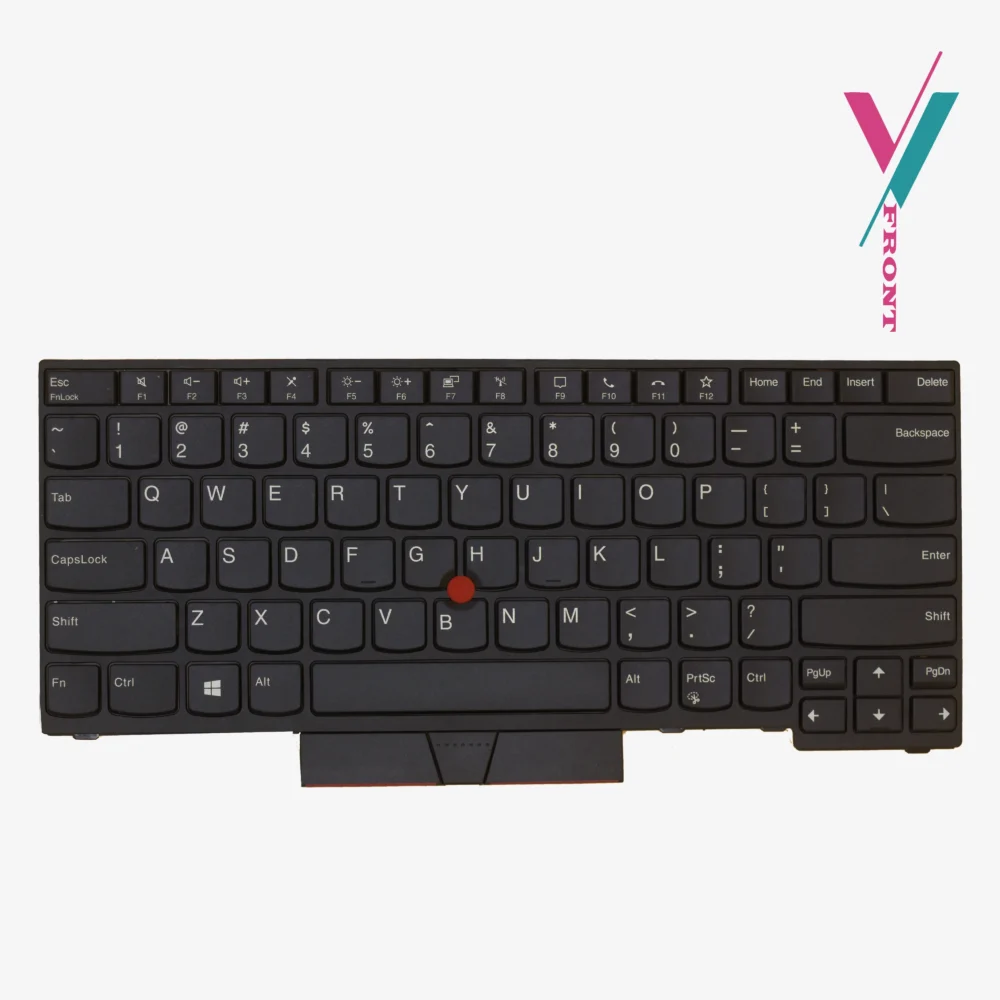
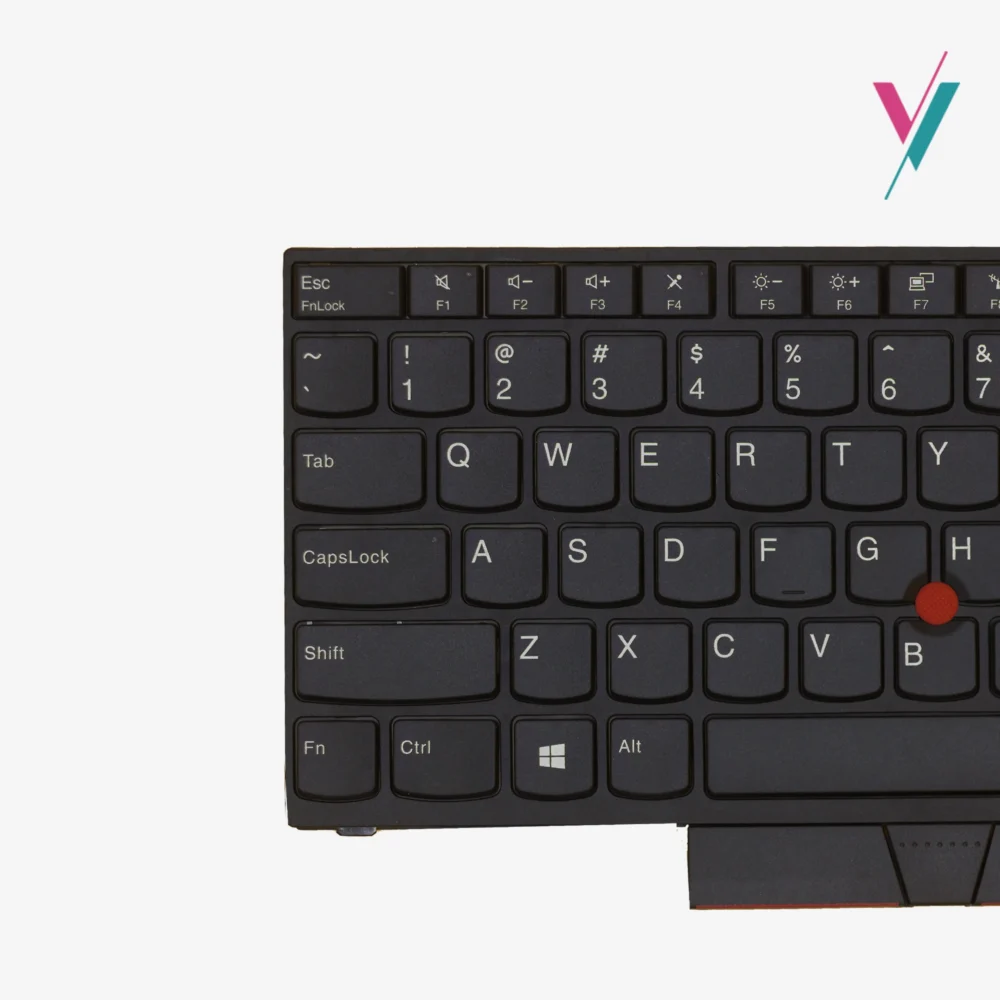
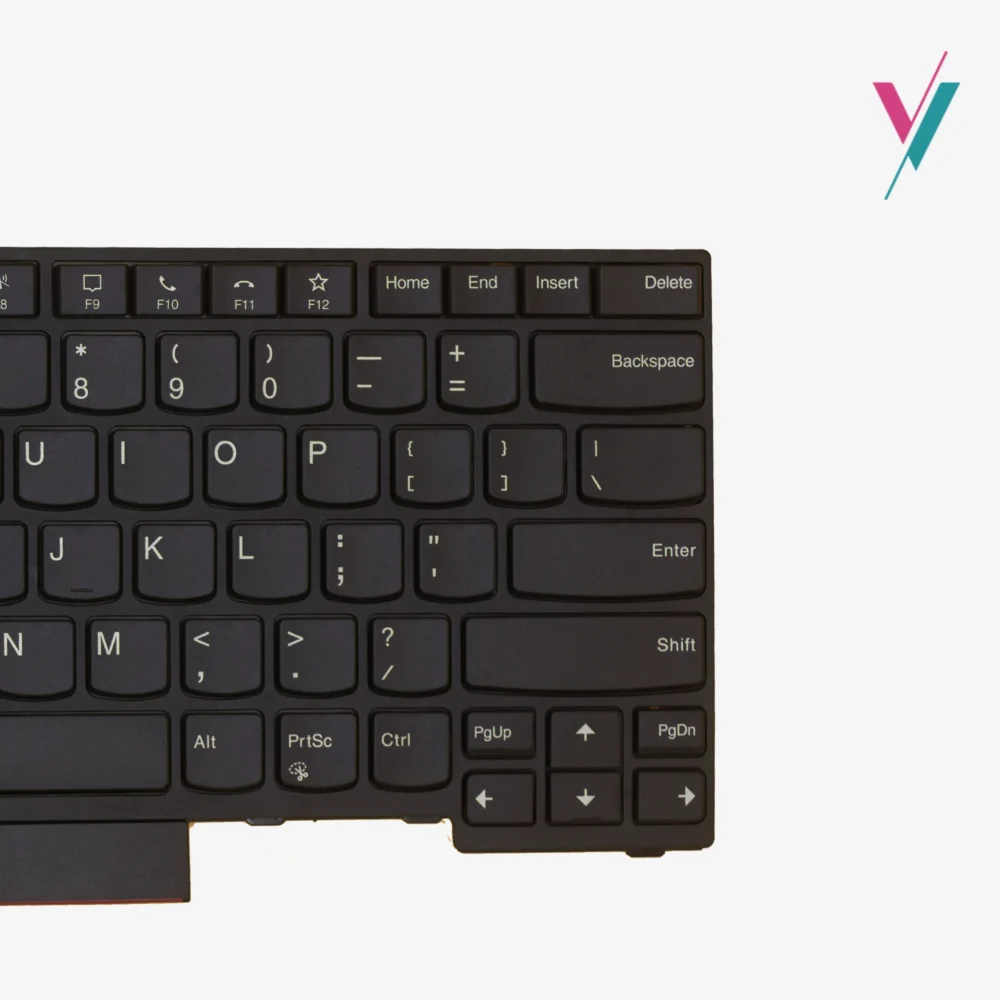
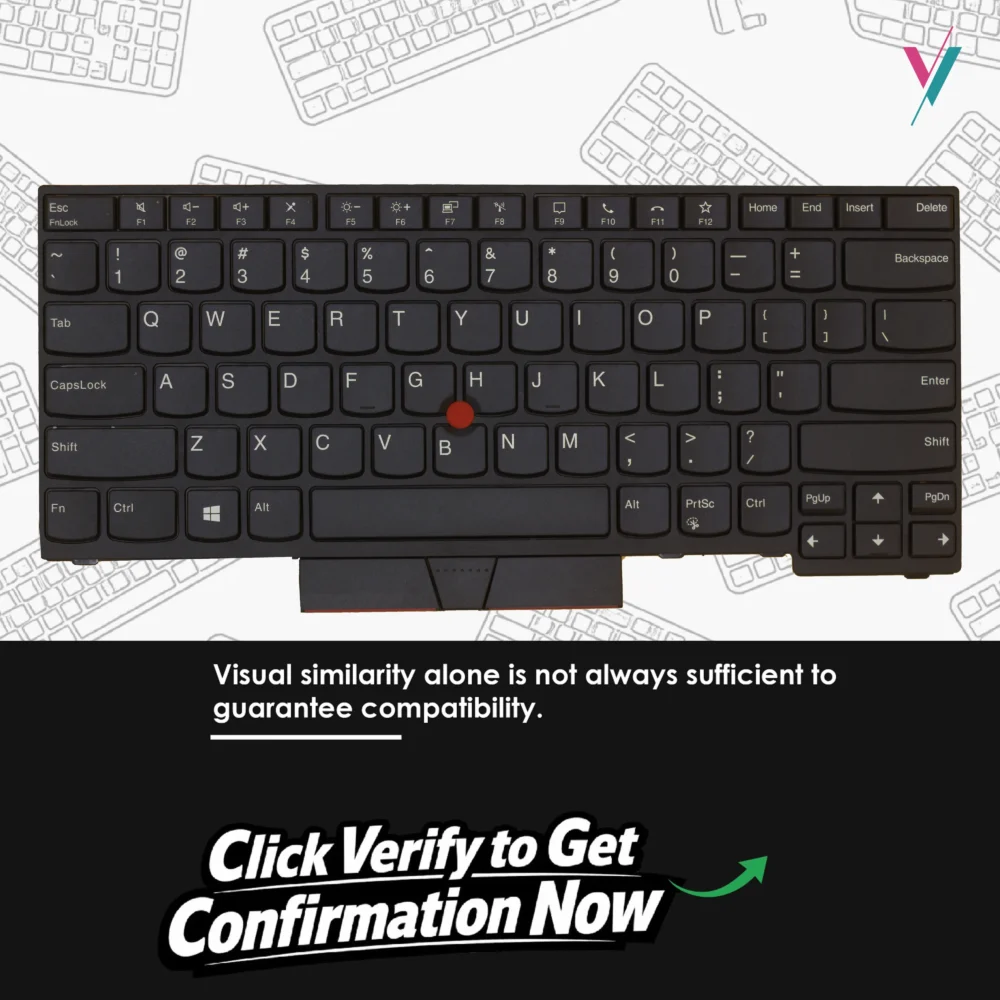
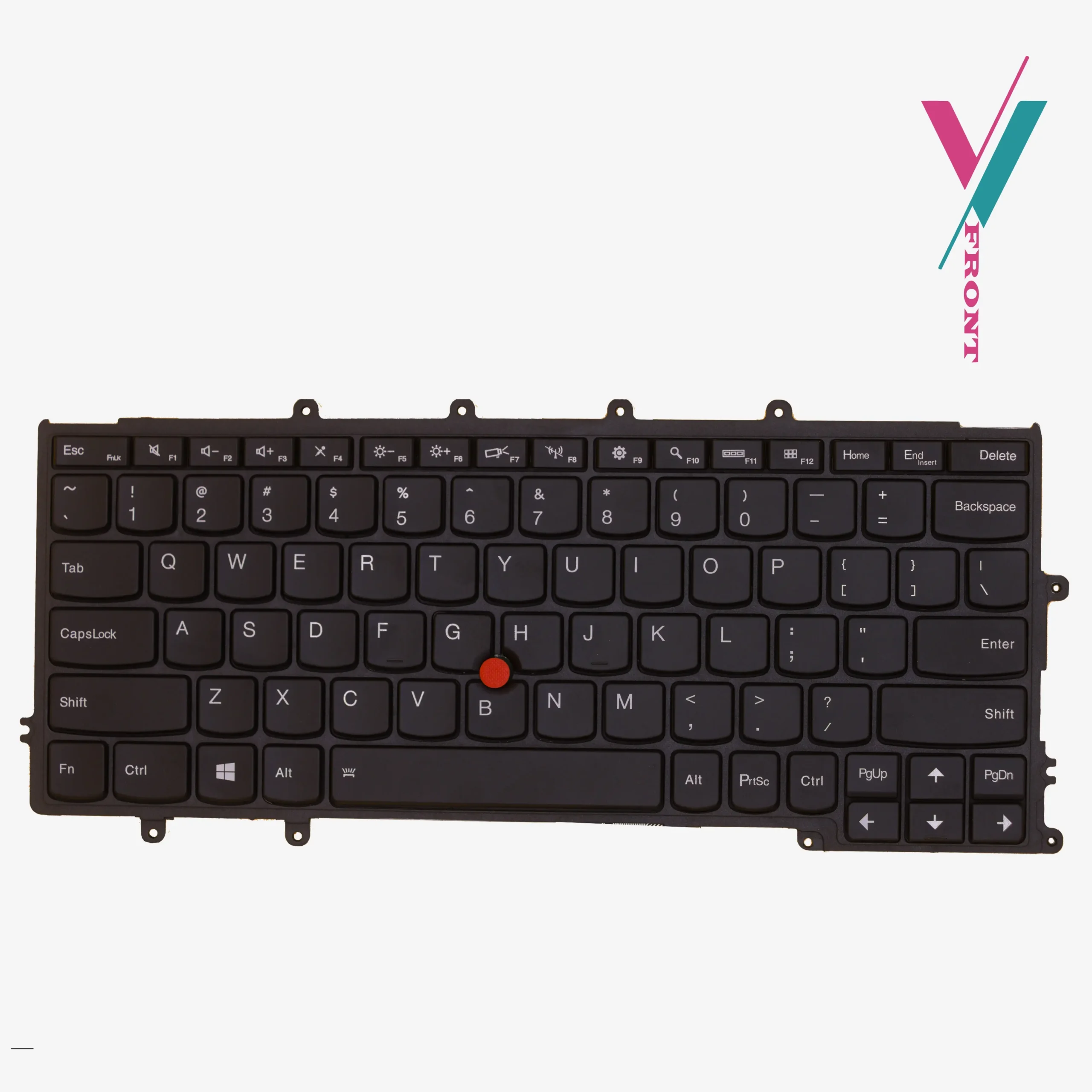
This is a replacement keyboard for the Lenovo ThinkPad T14 Gen1 and Gen2. It also fits the P14s Gen1 and P14s Gen2. Has US English layout and Black keys. TrackPoint (red pointing stick) included. Comes with the keyboard frame attached, this makes installation cleaner because the frame and keyboard arrive as one piece rather than two separate parts you have to assemble.
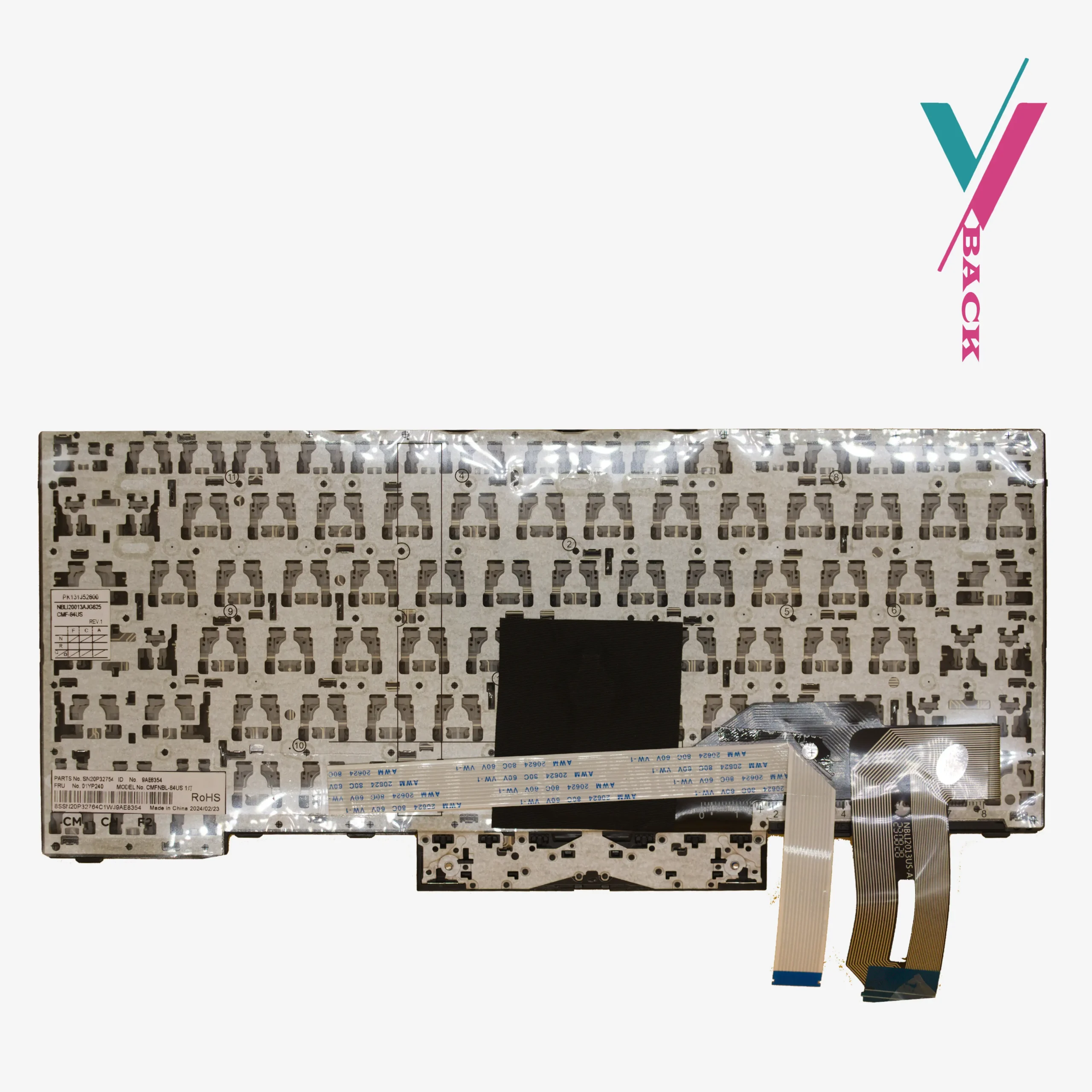
Which part numbers to look for (for reference only).
This keyboard is associated with the following part numbers:
- SN20V43688
- 5N20V43760
For the L14 variant (similar but not identical), the following FRU numbers are noted: SN20W67544, PK131H41B00, L14BL 84US, 55N20W67796, 5N20W67832, 5N20W67760.
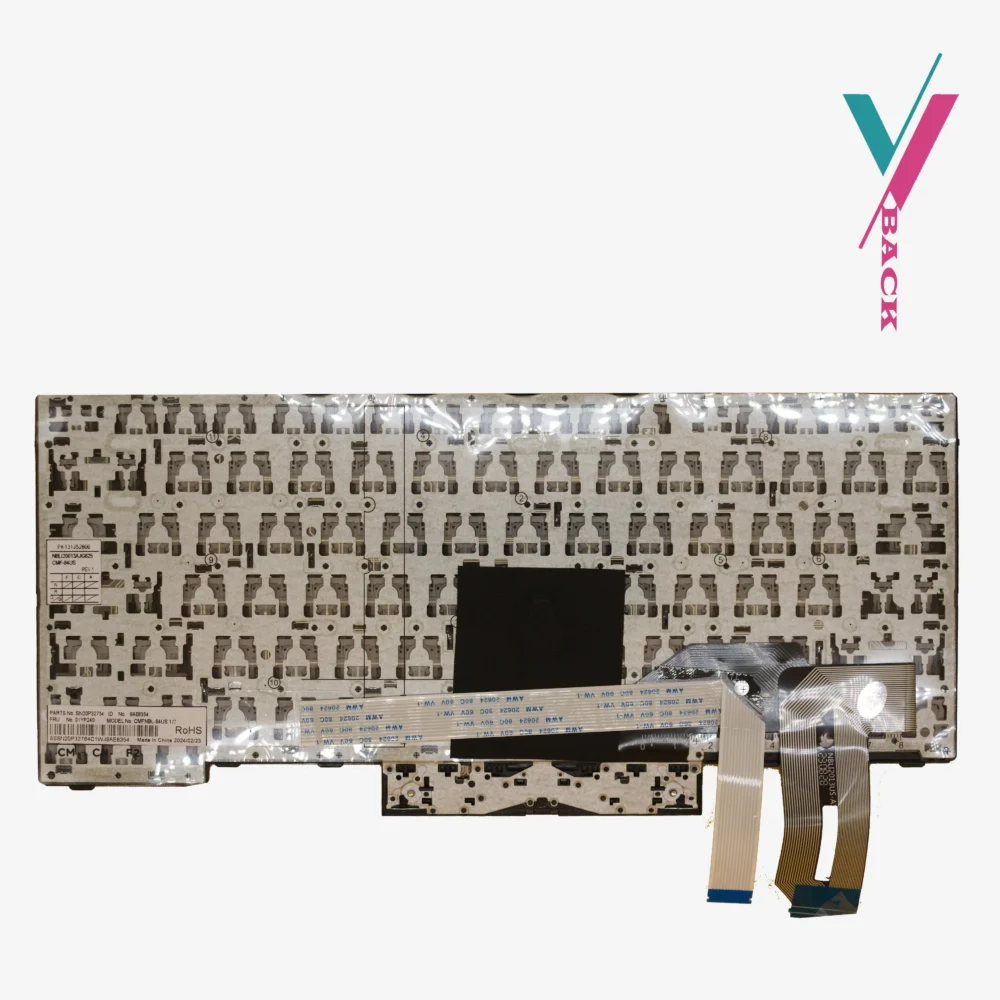
Important: These part numbers are a reference, not an exhaustive list. The ribbon cable connector is what matters most. In some rare cases your T14 might have a different connector than another T14. Verifying compatibility with us before purchase is the best procedure.
Which laptops does this fit?
- ThinkPad T14 Gen1
- ThinkPad T14 Gen2
- ThinkPad P14s Gen1
- ThinkPad P14s Gen2
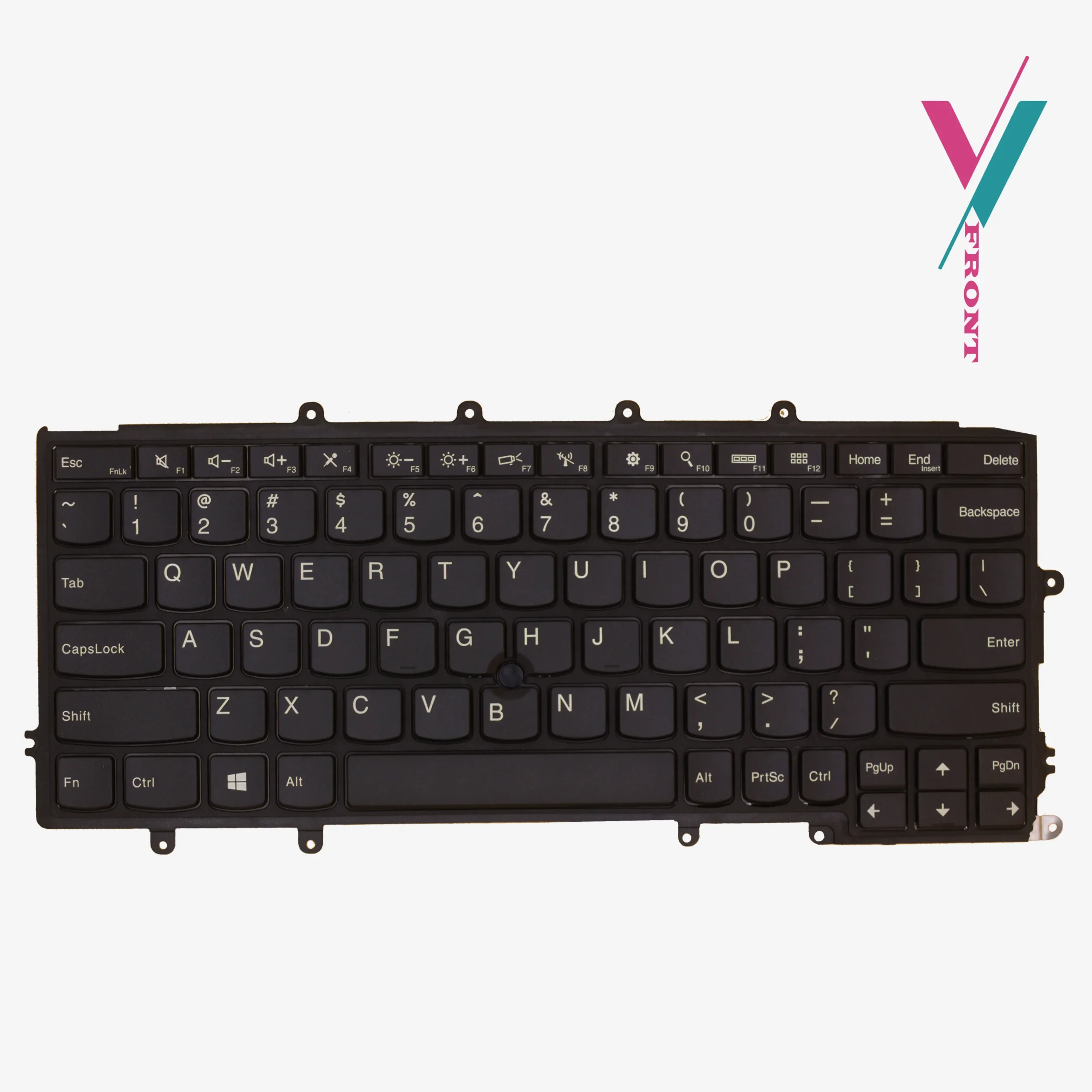
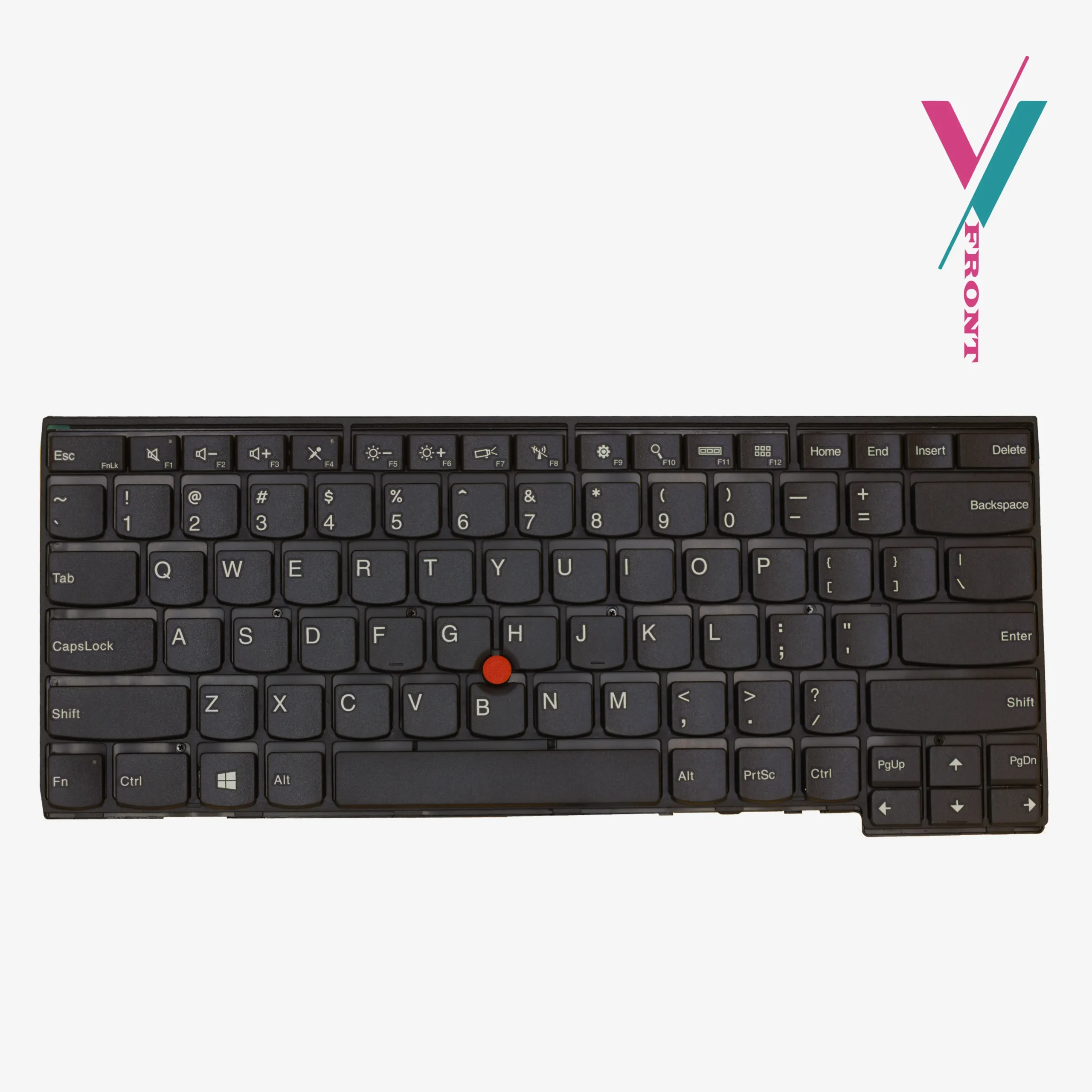
The L14 Gen1 (machine types 20U1, 20U2, 20U5, 20U6) uses a similar keyboard, but verify compatibility with us before ordering.
Installation
Because this keyboard comes with the frame attached, installation is slightly simpler than frameless replacements. The frame aligns with the laptop chassis, and the whole assembly screws into place.
Basic steps: Power down. Disconnect the battery (critical). Remove the old keyboard assembly. Disconnect the old ribbon cable. Connect the new ribbon cable. Seat the new keyboard assembly. Secure with screws. Reassemble.
a common problem: If keys do not work after installation, the ribbon cable is probably not fully seated. Disconnect it. Push the cable in again firmly, until it stops. You may feel a small click or see the cable sit flush. Lock the connector flap. Test again. This solves 90% of post-installation issues.
If you are not comfortable doing this yourself, we recommend having it done by a qualified technician, we can suggest a few if you do not have access to any.
What about the L14?
While the L14 keyboard looks similar to the T14 keyboard, do not assume they are interchangeable. verify compatibility with us before ordering if you have an L14.
Summary
Your ThinkPad T14 still has years of productive life ahead. A fresh keyboard with a responsive TrackPoint makes it feel like new again.
Click the “Verify Compatibility” button on this page before you order. Send us a photo of your current keyboard layout or the FRU number printed on the underside, and if possible, the ribbon cable connector if you can access it. Our team will identify exactly which version you need and confirm whether this keyboard is the correct match.

Reviews
There are no reviews yet.